

Microsoft Loop Explained: A Simple Guide to Modern Collaboration
Microsoft Loop Explained:
Workspaces, Components and Real-Time Collaboration
Microsoft Loop is a collaborative workspace built for modern teams that need to share ideas, manage projects, and stay in sync across Microsoft 365 apps. Instead of switching between documents, Teams chats, meeting notes, and task trackers, Loop brings everything together into one flexible environment.
Whether you are managing projects, running meetings, or collaborating across departments, Microsoft Loop helps team members work together in real time using flexible canvases, shared content, and live updates.
In this guide, we’ll explain what Microsoft Loop is, how it works, and why businesses using Microsoft 365 Business Premium should pay attention.
What Is Microsoft Loop?
Microsoft Loop is a collaborative app within the Microsoft 365 ecosystem that allows teams to create shared workspaces, editable content blocks, and real-time project pages.
At its core, Microsoft Loop is a collaborative platform designed to improve sharing and collaboration between teams. It combines notes, tasks, files, project updates, and discussions into one connected experience.
Loop works across popular Microsoft 365 apps including:
- Microsoft Teams (new features explained)
- Outlook
- Word for the web
- Whiteboard
- OneNote
This means your team can update content in one place and see those changes reflected instantly everywhere else.
Key Features of Microsoft Loop
Loop Components
Loop components are portable pieces of content that can be shared across Microsoft 365 apps.
These components can include:
- Task lists
- Tables
- Checklists
- Meeting notes
- Voting tables
- Status trackers
- Paragraphs and collaborative text
For example, you can create a task list inside the Loop app and paste it directly into Teams chats or Outlook emails. Everyone can edit the content in real time without opening another application.
This helps teams stay aligned and reduces the confusion caused by outdated documents or disconnected conversations.
Loop Workspaces
Loop workspaces are shared collaboration areas where teams organise projects, ideas, and resources.
A workspace can include:
- Project management updates
- Meeting agendas
- Team goals
- Shared documents
- Progress trackers
- Notes and discussions
Loop workspaces are especially useful for enabling teams to collaborate on long-term projects while keeping all information in one place.
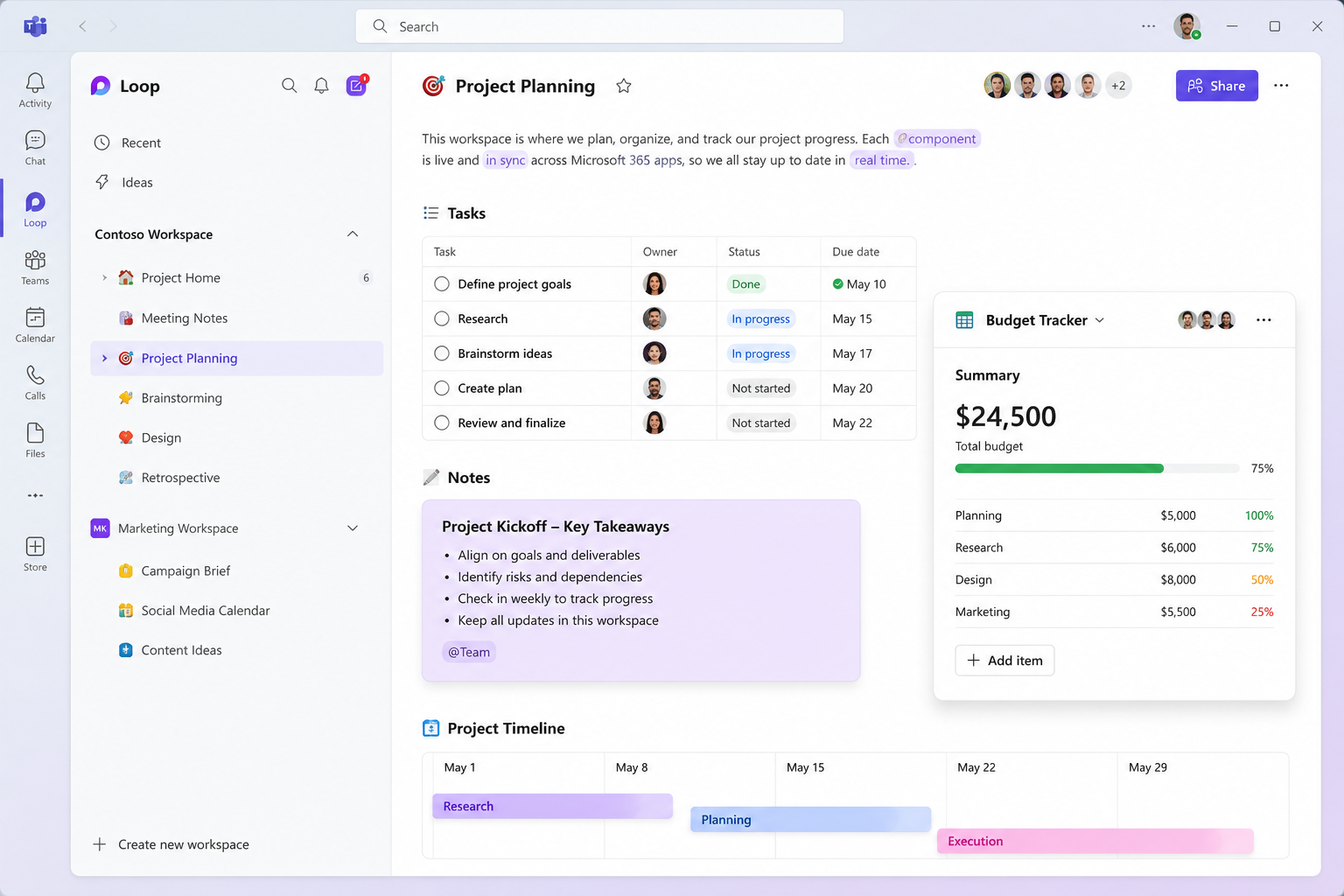
Flexible Canvases
One of the standout features of Microsoft Loop is its flexible canvases.
Unlike traditional documents, Loop pages allow users to move content blocks freely and build collaborative layouts that adapt to the way teams work.
This makes it easier to:
- Brainstorm ideas
- Organise projects visually
- Track progress
- Share updates
- Collaborate during meetings
Because everything updates live, team members can contribute simultaneously from different locations.
How Microsoft Loop Improves Project Management
Microsoft Loop can significantly improve project management by centralising communication, planning, and collaboration.
Instead of relying on scattered files and endless email chains, teams can manage work within shared Loop pages.
Businesses can use Microsoft Loop to:
- Create collaborative project plans
- Assign tasks to team members
- Record meeting notes
- Track progress in real time
- Share live updates across departments
- Keep Teams chats connected to project content
For organisations already using Microsoft 365 Business Premium, Loop adds another layer of collaboration without requiring additional third-party tools.
Microsoft Loop and Teams Chats
One of the most useful integrations is between Microsoft Loop and Microsoft Teams.
Loop components can be inserted directly into Teams chats and meetings, allowing users to collaborate without leaving the conversation.
For example, during a meeting you can:
- Create meeting notes in a Loop component
- Assign action items to team members
- Update task progress live during the discussion
- Share decisions instantly with the wider team
Because Loop updates in real time, everyone always sees the latest version.
This reduces duplicate work and helps teams stay in sync.
Getting Started With Loop
Getting started with Loop is relatively simple for businesses already using Microsoft 365.
Quick Start Guide
To get started with Loop:
- Sign in with your Microsoft 365 account
- Open the Loop app
- Create your first Loop workspace
- Add pages for projects, notes, or planning
- Invite team members to collaborate
- Start adding Loop components
Microsoft continues to expand the platform, making it easier for organisations to adopt collaborative workflows across departments.
Why Businesses Are Adopting Microsoft Loop
Modern workplaces rely heavily on collaboration tools, especially for hybrid and remote teams.
Microsoft Loop helps businesses:
- Improve communication
- Reduce silos between departments
- Encourage real-time collaboration
- Simplify project management
- Keep information organised
- Improve visibility across teams
Because Microsoft Loop connects directly with Microsoft 365 apps, employees can work within tools they already know.
This lowers training requirements and helps businesses adopt new collaboration methods faster.
Microsoft Loop and Real-Time Collaboration
Real-time collaboration is one of the biggest advantages of Microsoft Loop.
Instead of waiting for files to be emailed back and forth, team members can work together simultaneously.
Changes appear instantly for everyone viewing the page, helping teams:
- Stay in sync
- Avoid version control issues
- Make decisions faster
- Improve productivity
- Collaborate more effectively across locations
For businesses with remote or hybrid workers, this can dramatically improve efficiency.
Is Microsoft Loop Included With Business Premium?
Microsoft Loop is available as part of the Microsoft 365 ecosystem, and many organisations using Microsoft 365 Business Premium can access Loop features through their existing licensing.
Feature availability may vary depending on your Microsoft subscription and rollout status.
If your organisation already uses Microsoft Teams, Outlook, and SharePoint, Microsoft Loop can become a natural extension of your collaboration workflow.
Check out this blog post - E3 vs E5 - Key differences explained to compare business plans
Final Thoughts
Microsoft Loop is changing the way businesses collaborate.
By combining loop workspaces, flexible canvases, loop components, and real-time collaboration into one connected platform, Microsoft is creating a more dynamic way for teams to work together.
Whether you need better project management, improved meeting notes, stronger sharing and collaboration, or a smarter way to keep teams aligned, Microsoft Loop offers a practical solution.
For businesses already invested in Microsoft 365 apps and Business Premium, now is a good time to explore how Loop can help your organisation improve productivity and enabling teams to collaborate more effectively.
Additional Reading
If you have found this article useful, then we feel you might like to have a look at the following articles of related interest:-
Using Microsoft Copilot in SharePoint to boost productivity
What's New in SharePoint in 2026
8 Signs It's Time to Switch Your IT Support Provider
Frequently Asked Questions
What is Microsoft Loop used for?
Microsoft Loop is used for collaboration, project management, shared planning, meeting notes, and real-time teamwork across Microsoft 365 apps.
What are Loop components?
Loop components are live, editable content blocks that can be shared across Teams chats, Outlook, and other Microsoft 365 apps.
What are Loop workspaces?
Loop workspaces are shared collaboration areas where teams organise projects, tasks, notes, and resources.
Can Microsoft Loop help teams stay in sync?
Yes. Because updates happen in real time, Microsoft Loop helps teams stay in sync and collaborate more effectively.
Is Microsoft Loop included with Microsoft 365 Business Premium?
Many Microsoft 365 Business Premium subscriptions include access to Microsoft Loop features, although availability may depend on Microsoft rollout schedules and licensing.